

Team in the Loop lets an agent pause mid-task to ask a project member a question. The teammate answers from a notification card (or email), and the agent resumes the original task using the answer as context. Requests can arrive while you are viewing the chat or asynchronously via notification and email, so you can respond at your own pace.Documentation Index
Fetch the complete documentation index at: https://docs.jitera.ai/llms.txt
Use this file to discover all available pages before exploring further.
How the agent decides when to ask
- The agent asks only when it is blocked by missing information — not to seek permission to take an action
- It searches its own memory and project context first, and only escalates to a human when nothing relevant is found
- The recipient is selected in this order:
- A person explicitly named in your instructions (for example, “ask Kousuke”)
- A teammate the agent judges most likely to know, based on project context
- You, the current user, when no one else can be identified
- One question card is sent per agent response. The agent waits for the card to be answered, skipped, or cancelled before continuing the task that triggered it — but the card is handled asynchronously, so you can keep chatting with the agent and start new tasks in the meantime
- Once the answer arrives, the agent resumes the original task without re-announcing the question
Receiving a request
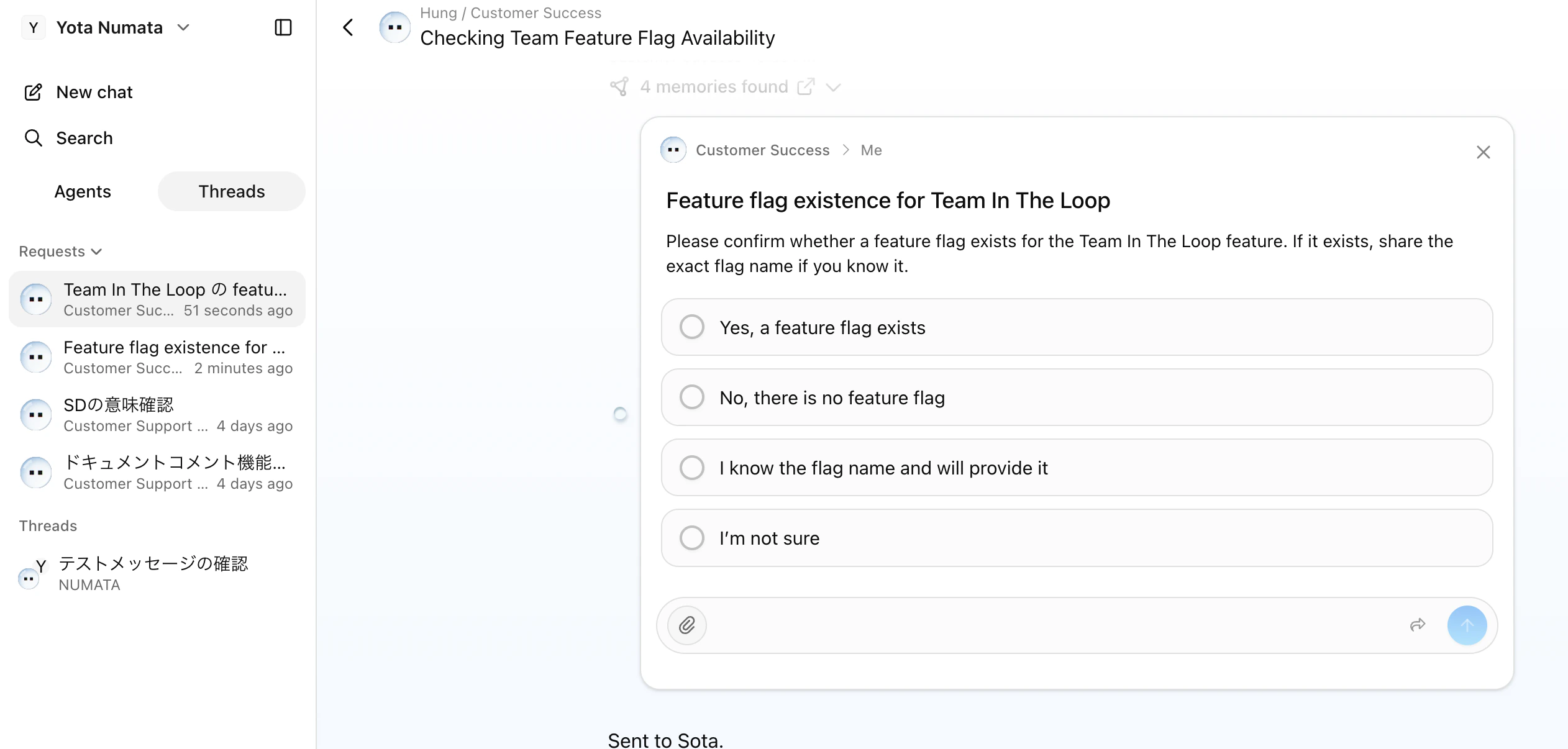
Requests appear in two places depending on whether you are currently in the conversation:- In the chat thread — if you are viewing the chat, the request card appears inline above the chat input
- As a notification — if you are elsewhere, you receive an in-app notification and an email. Open the notification panel to see the request card
Responding to a request
Select an option and submit
- Review the question and any attached files.
- Select one of the predefined options.
- Optionally type additional context in the text input field.
- Optionally attach files to provide more information.
- Click the Send button to submit your response.
Write a custom response
Instead of selecting a predefined option, you can type a freeform answer in the text input field and submit it directly.Skip
If you want the agent to proceed without your input, click Skip. The agent continues with its best judgment.Join chat
Click Join Chat to open the conversation thread where the agent is working. This lets you see the full context and continue interacting with the agent directly. If you are not yet a member of the thread, you are added with view access when you join.Forward to a team member
If someone else is better suited to answer, click the Forward button and select a project member from the list. The request is reassigned to them and removed from your notifications. A forward chain is displayed on the card, showing the avatars of everyone the request has passed through.Sender’s view
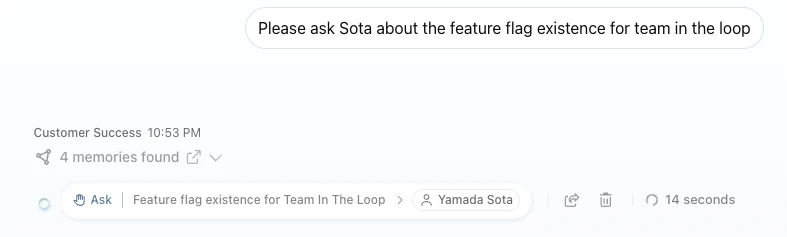
In the thread that sent the request, the agent displays a pending card showing:- The recipient’s avatar and name
- A forward chain if the question has been handed on
- Elapsed time since the card was sent
Automatic context learning
After you respond to a request and the agent completes its task, the system automatically extracts confirmed facts from the Q&A exchange and adds them to the agent’s Context. This helps the agent remember your decisions for future conversations.Availability
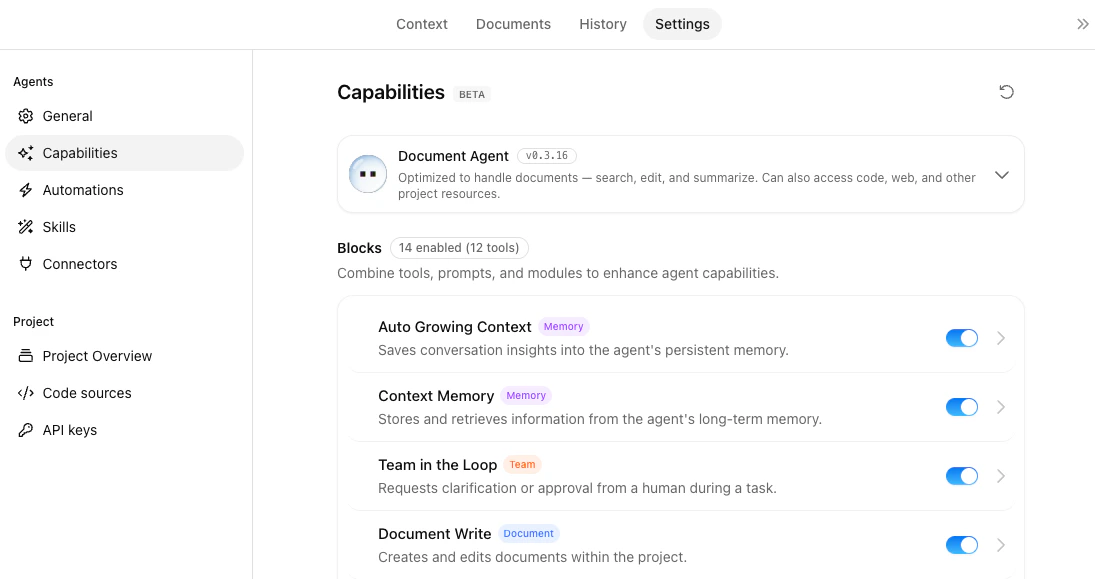
- The agent must have the Team in the Loop capability block enabled on its Capabilities page. Agents without this block cannot request human input.
- Only project members can be recipients. External users and guests cannot receive request cards.
Related
- AI Chat Interface — Main chat interface
- Group Chat — Multi-member collaboration in a thread
- Tool Calls & Actions — How agents use tools during tasks
- Capabilities — Enable the Team in the Loop block on your agent
- Context — How agents build project knowledge