

Connecting a GitHub repository to your project allows AI agents to read your source code and provide code-based answers and documentation.Documentation Index
Fetch the complete documentation index at: https://docs.jitera.ai/llms.txt
Use this file to discover all available pages before exploring further.
Connection Steps
-
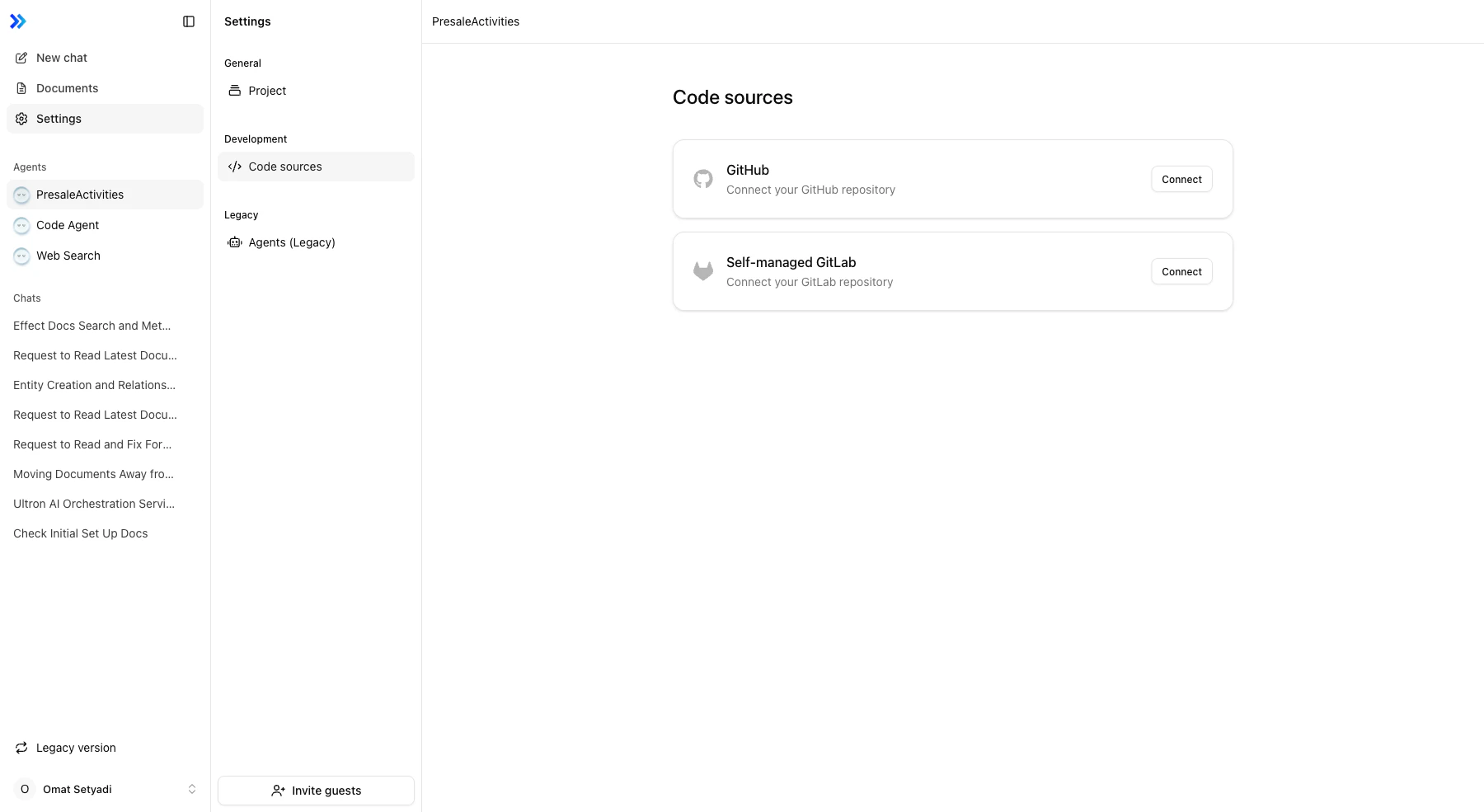
Open Code sources in project settings
-
Click Connect next to GitHub
Only one provider can be connected per project. To switch providers, disconnect all connected repositories first.
- An OAuth popup opens — authorize Jitera’s access to your GitHub repositories
-
In the repository selection dialog, choose the repositories to connect (up to 2)
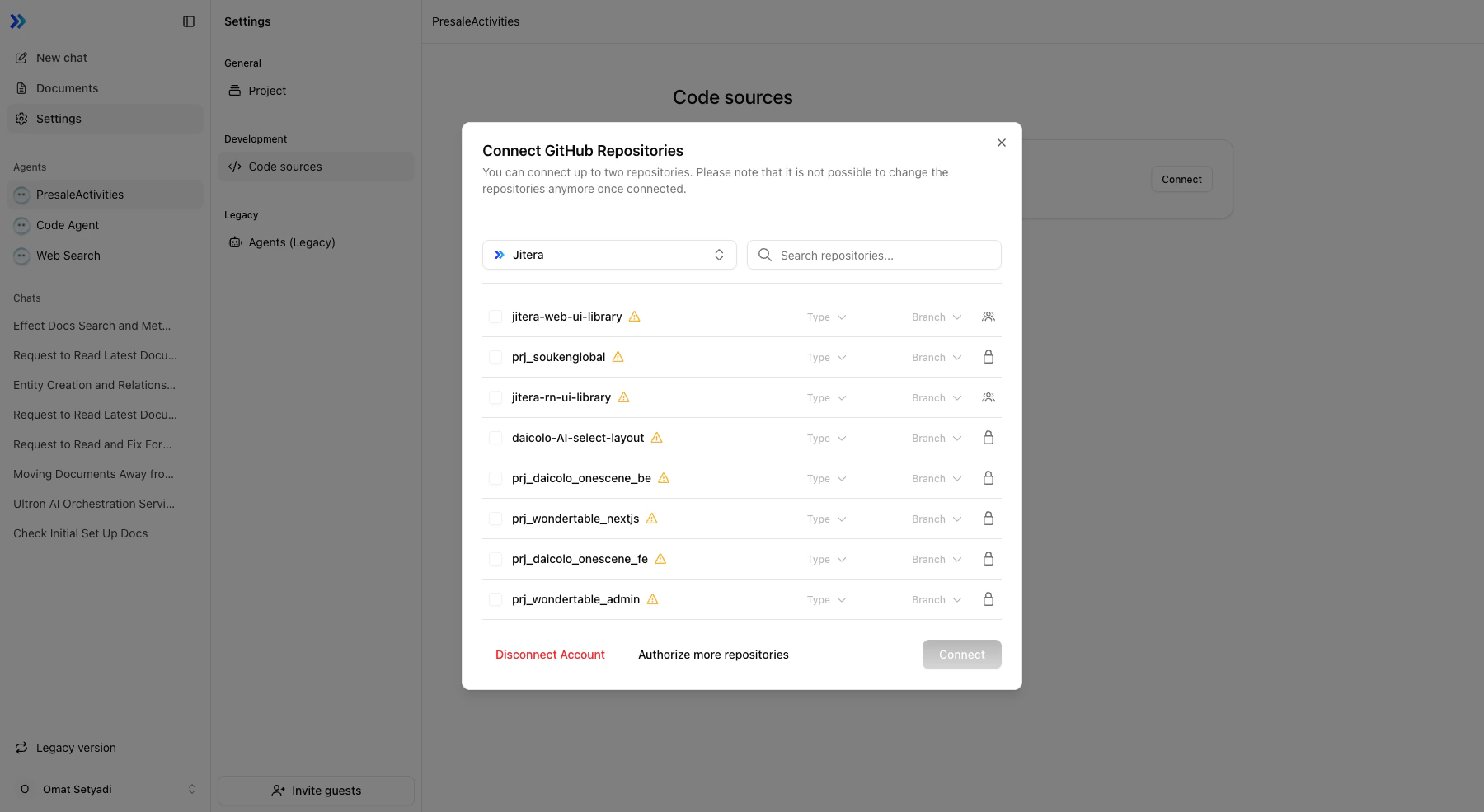
- Set the Type and Branch for each repository, then click Connect
Repository Types
| Type | Description |
|---|---|
| Frontend | Client-side application code |
| Backend | Server-side application code |
| Monorepo | Full-stack application in a single repository |
Resync
To update connected repository code to the latest state, run a resync from the code sources page. Resync consumes credits.Disconnect
Disconnecting a repository removes the agent’s access to that repository’s code. You can reconnect after disconnecting.Related
- Code Sources (GitLab) — Connect a self-managed GitLab repository instead
- Project Setup — Basic project settings
- Agent Basics — Agent workspace overview