

Every time a document is saved, Jitera records the change as part of a commit — a snapshot of one or more document changes made together. You can browse this history, compare any two versions, and restore a previous version.Documentation Index
Fetch the complete documentation index at: https://docs.jitera.ai/llms.txt
Use this file to discover all available pages before exploring further.
Viewing history
- Open a document and click the Diff view tab (top right of the editor).
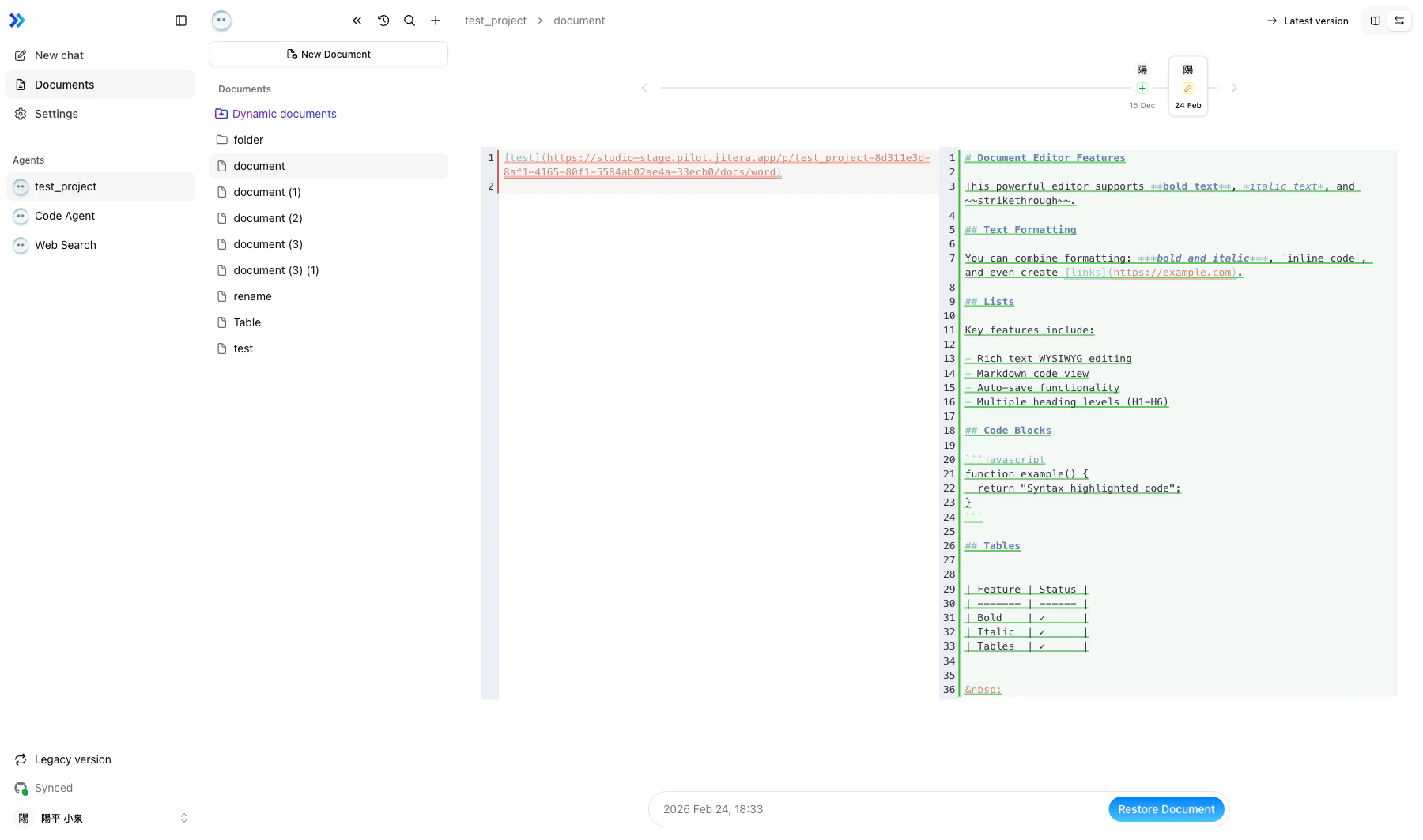
- The history panel shows a timeline of commits, each with:
- The date of the change
- The author (user or AI agent) who made the change
- The type of change — added, modified, deleted, renamed, or moved
- Click a commit to view that version.
- Scroll through the timeline, which loads more commits as you scroll (20 at a time).
Comparing versions
You can compare any two versions in the history — they do not need to be consecutive.- Open the history panel and click the Diff comparison mode tab.
- By default, the diff shows the selected version against its immediate predecessor.
- To compare different versions, click any other entry in the timeline — it becomes the compare target, highlighted with a distinct border. The diff updates to show the two selected versions side by side.
- Date labels appear above the diff panels indicating which version is on each side. The system automatically places the older version on the left regardless of selection order.
- Two panels appear side by side:
- Left — the older version (deletions highlighted in red)
- Right — the newer version (additions highlighted in green)
- Line numbers are shown on both sides. Both panels scroll together.
- Click the compare target again to deselect it and return to the default previous-version comparison.
compareWith parameter), so you can share or bookmark a specific comparison.
Restoring a version
- Navigate to the version you want to restore in the timeline.
- Click Restore Document.
- The document content reverts to the selected version.
Related
- Editing Documents — Saving documents creates versions
- Collaborative Editing — Auto-save snapshots appear in history