

Documentation Index
Fetch the complete documentation index at: https://docs.jitera.ai/llms.txt
Use this file to discover all available pages before exploring further.
Capabilities is in BETA.
- Workflow preset — The base template the agent is built on
- Blocks — Individual features you can toggle on or off
- System prompts — The underlying instructions sent to the model, which you can override
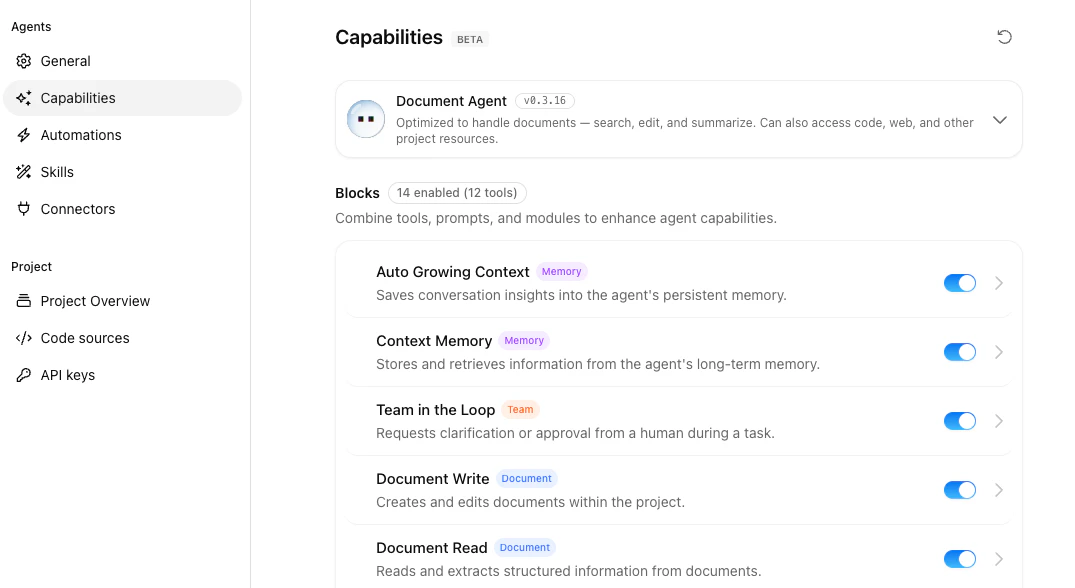
Opening the Capabilities page
- In the left sidebar, click an agent name to open its configuration page
- In the agent’s configuration sidebar, click Capabilities
Workflow Preset
The top of the page displays the current workflow preset — the base template the agent uses. To switch to a different preset, click the preset card and select an alternative workflow. The blocks list below updates to reflect the new preset.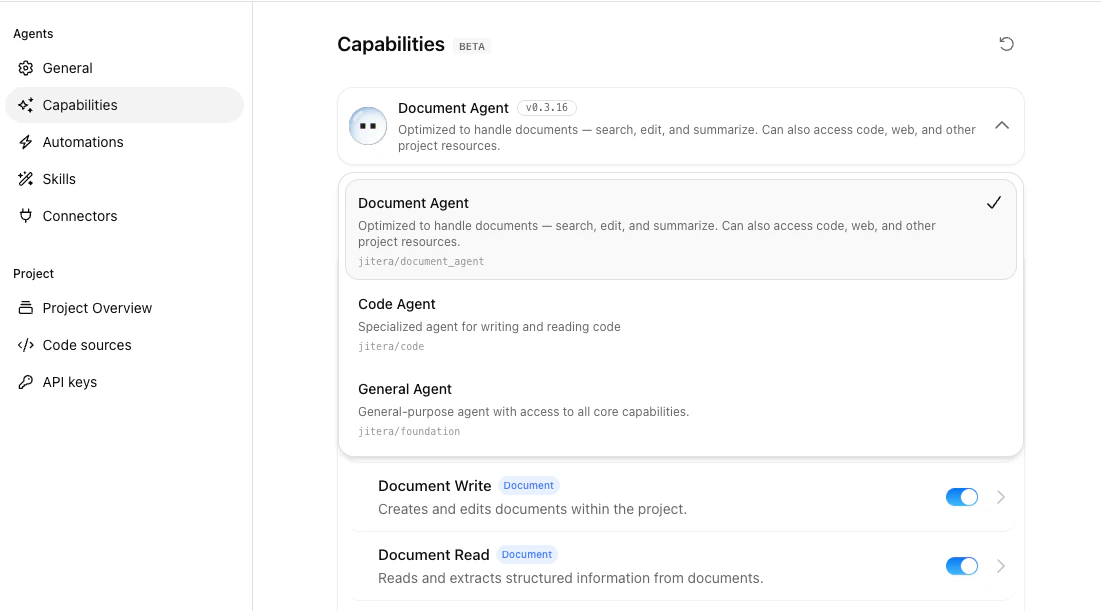
Blocks
Blocks are the individual features an agent can use — memory, search, document editing, web access, and so on. Each block can be enabled or disabled independently for the agent.- Use the toggle on each block card to enable or disable the block
- Click a block card to open its details
Block Details
Click any block card to open the Block details dialog. The dialog shows the block’s prompts, tools, and underlying modules, and lets you toggle the block on or off.System Prompts (Advanced)
The Advanced section of the page contains the model-facing system prompts derived from the active workflow. These prompts are the instructions the LLM receives before each conversation.- Expand the Advanced section
- Review the prompts — they are grouped by target model audience (Claude / Anthropic, GPT / OpenAI, or Default)
- Click Edit to open the system prompt editor
- Modify the prompt for each variant, or click Add variant to target another model audience
- Click Save
Saving and Discarding Changes
While you have unsaved changes, a sticky header appears at the top of the page with two actions:- Discard — Reverts all unsaved changes, including block toggles and system prompt edits
- Update — Saves all changes to the agent
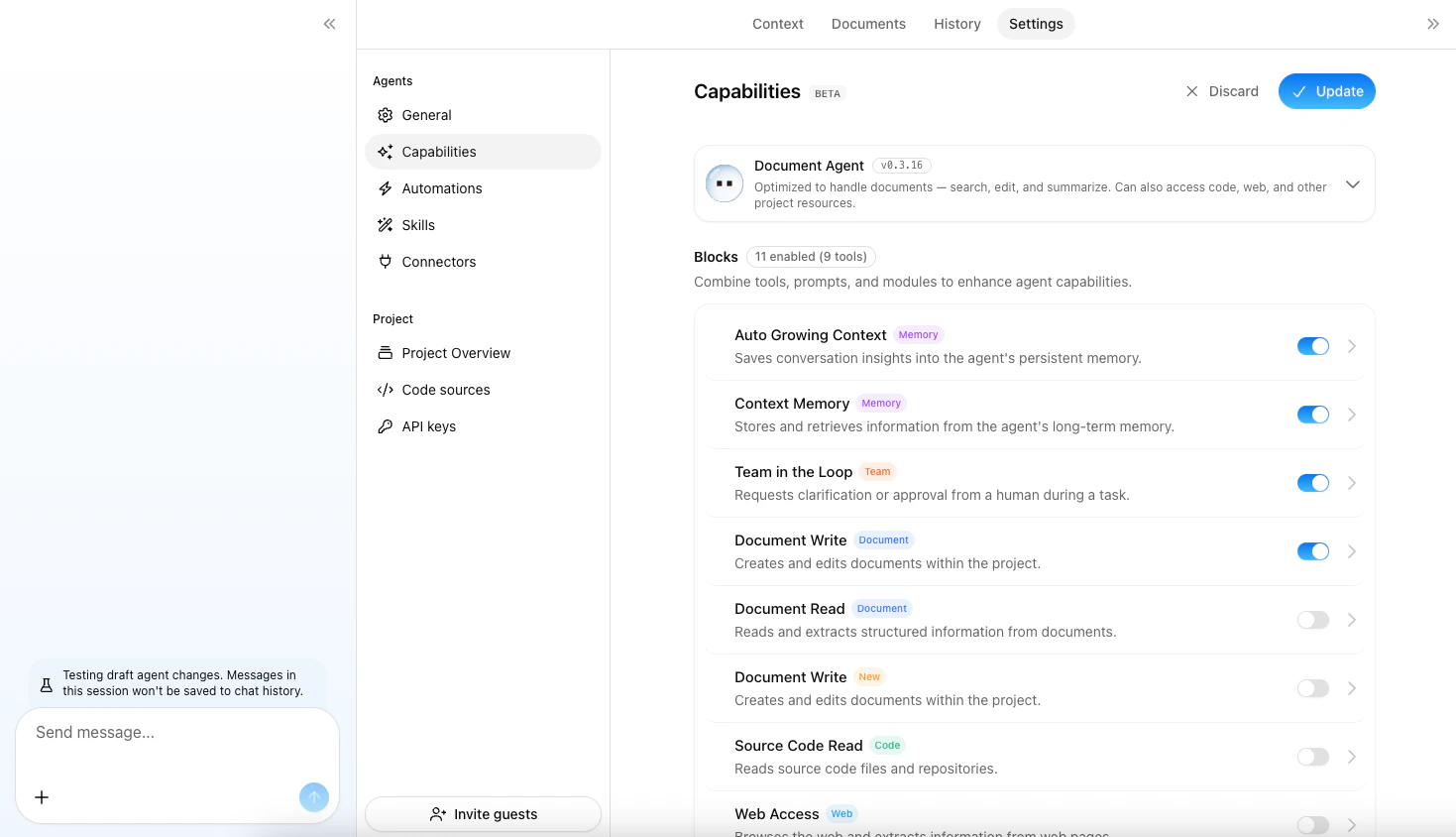
Restoring Defaults
To revert every block, module override, and system prompt edit back to the workflow preset defaults, click the Restore Defaults icon in the page header. This icon is visible when there are no unsaved changes.Related
- Managing Agents — Agent creation and configuration
- Skills — AI capability packages for agents
- Apps (MCP) — Connecting external services to agents
- Automation — Scheduling agent tasks