

Bring existing documentation into Jitera by importing files, or export your documents for use outside the platform.Documentation Index
Fetch the complete documentation index at: https://docs.jitera.ai/llms.txt
Use this file to discover all available pages before exploring further.
Importing documents
Supported import formats
| Format | Extension |
|---|---|
| Markdown | .md |
| HTML | .html |
.pdf | |
| Excel | .xlsx, .xls |
| ZIP archive | .zip (extracts contents with folder structure) |
How to import
- Navigate to the target folder in the Documents section.
- Click the menu button (three dots) in the folder header.
-
Choose an import option:
- Import documents — for Markdown, HTML, or ZIP files
- Import PDF — for PDF files
- Import Excel — for spreadsheets
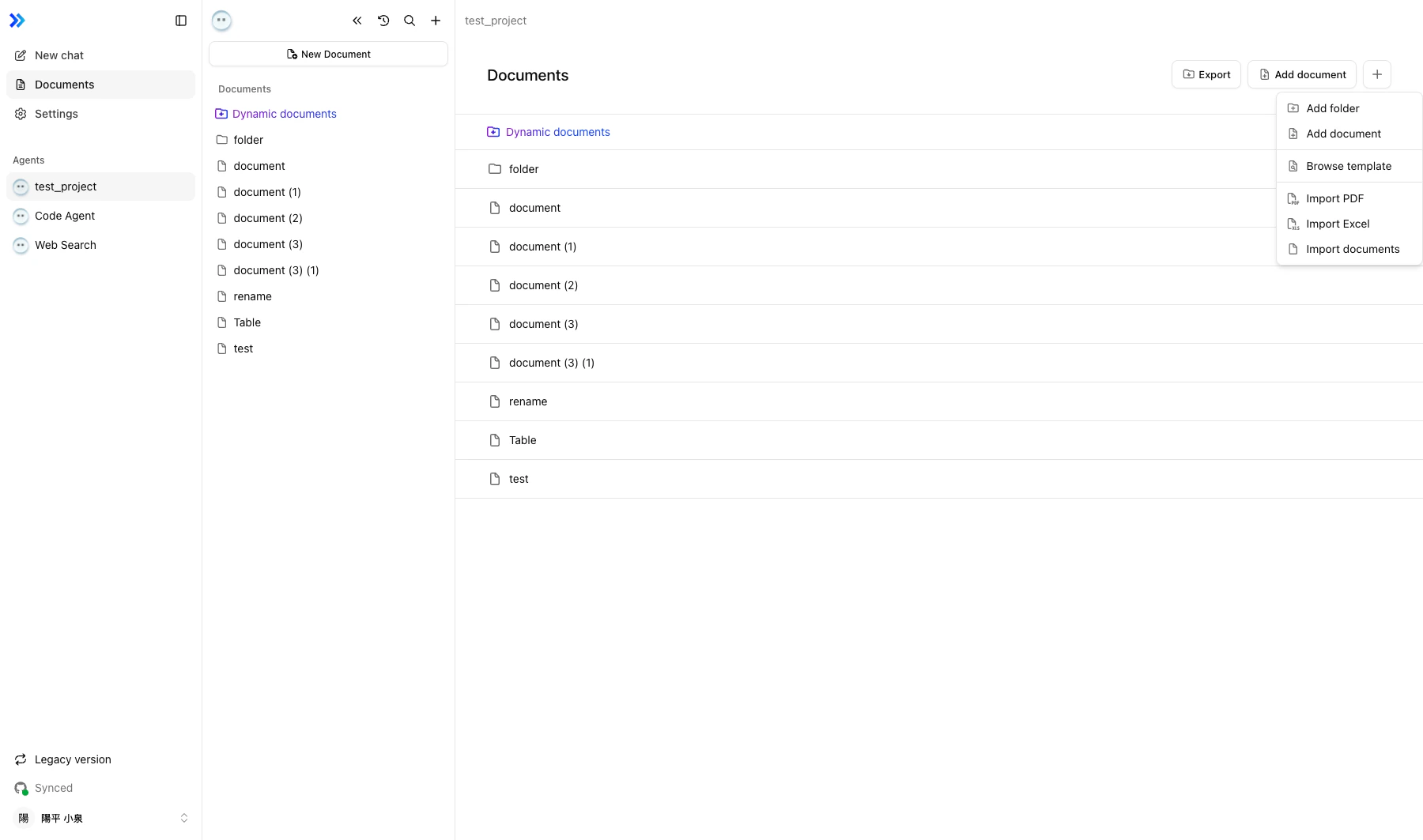
-
In the dialog, add files by clicking the drop zone or dragging files into it.
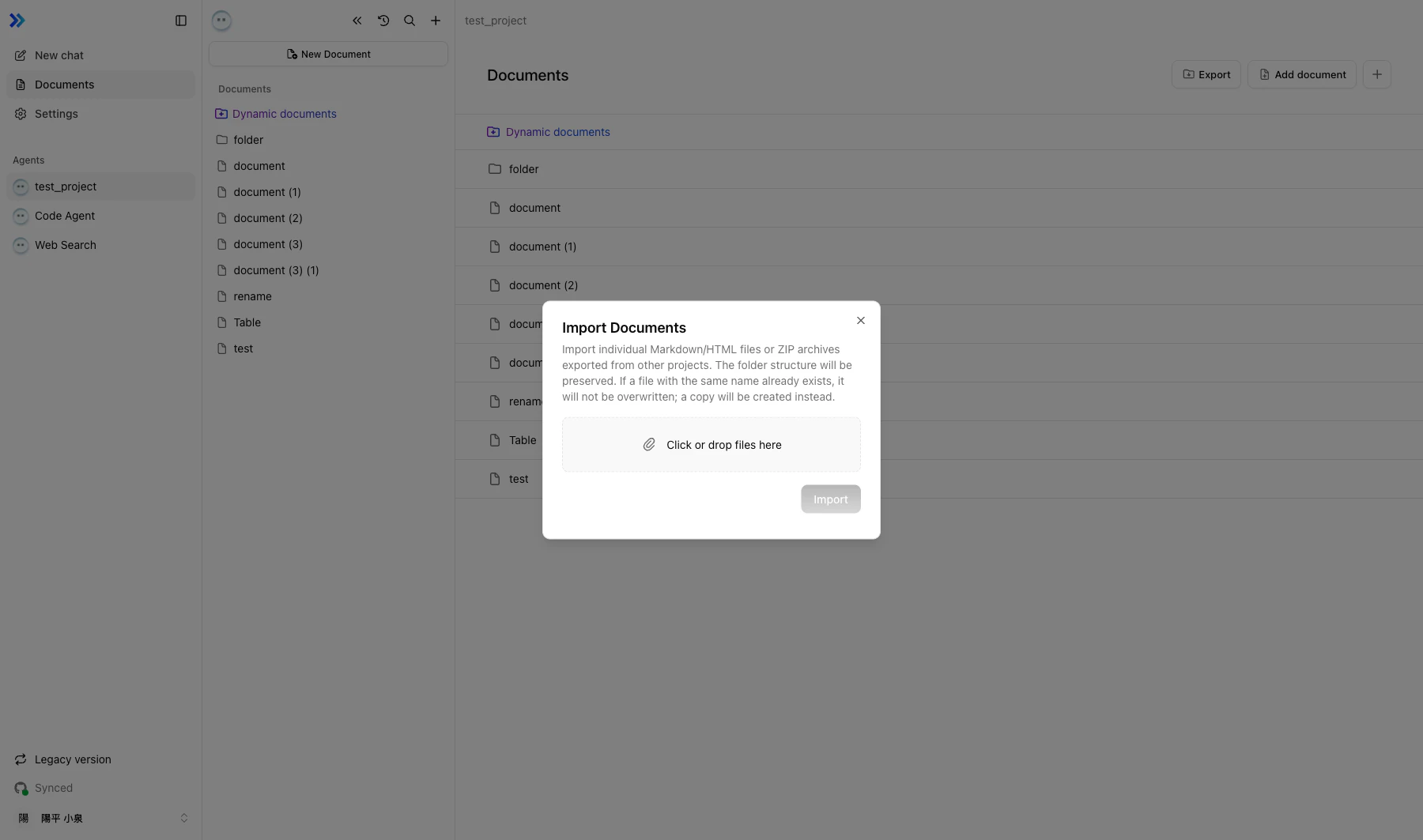
- Click Import to start the process.
Import behavior
- Folder structure is preserved. ZIP archives extract with their original hierarchy.
- Duplicate file names are handled by creating a copy — existing files are never overwritten.
- Import progress is shown in a status modal with success and error counts for each file.
- Files are validated during import. HTML content is sanitized for security.
Exporting documents
Export a folder as ZIP
- Navigate to the folder you want to export.
- Click Export in the folder header.
- A ZIP file downloads automatically, containing all documents and subfolders with their structure preserved.
Export a single document
You can also export individual documents:- PDF export — Download a document as a PDF file.
- HTML/Markdown export — Download with embedded images and assets.
Related
- Browsing & Organizing — Managing documents after import
- Editing Documents — Editing imported documents
- Dynamic Documents — AI-generated alternative to manual documentation