

The Documents interface uses a two-panel layout: a file tree on the left for navigation and a content area on the right that shows either a folder view or the document editor.Documentation Index
Fetch the complete documentation index at: https://docs.jitera.ai/llms.txt
Use this file to discover all available pages before exploring further.
Navigating the file tree
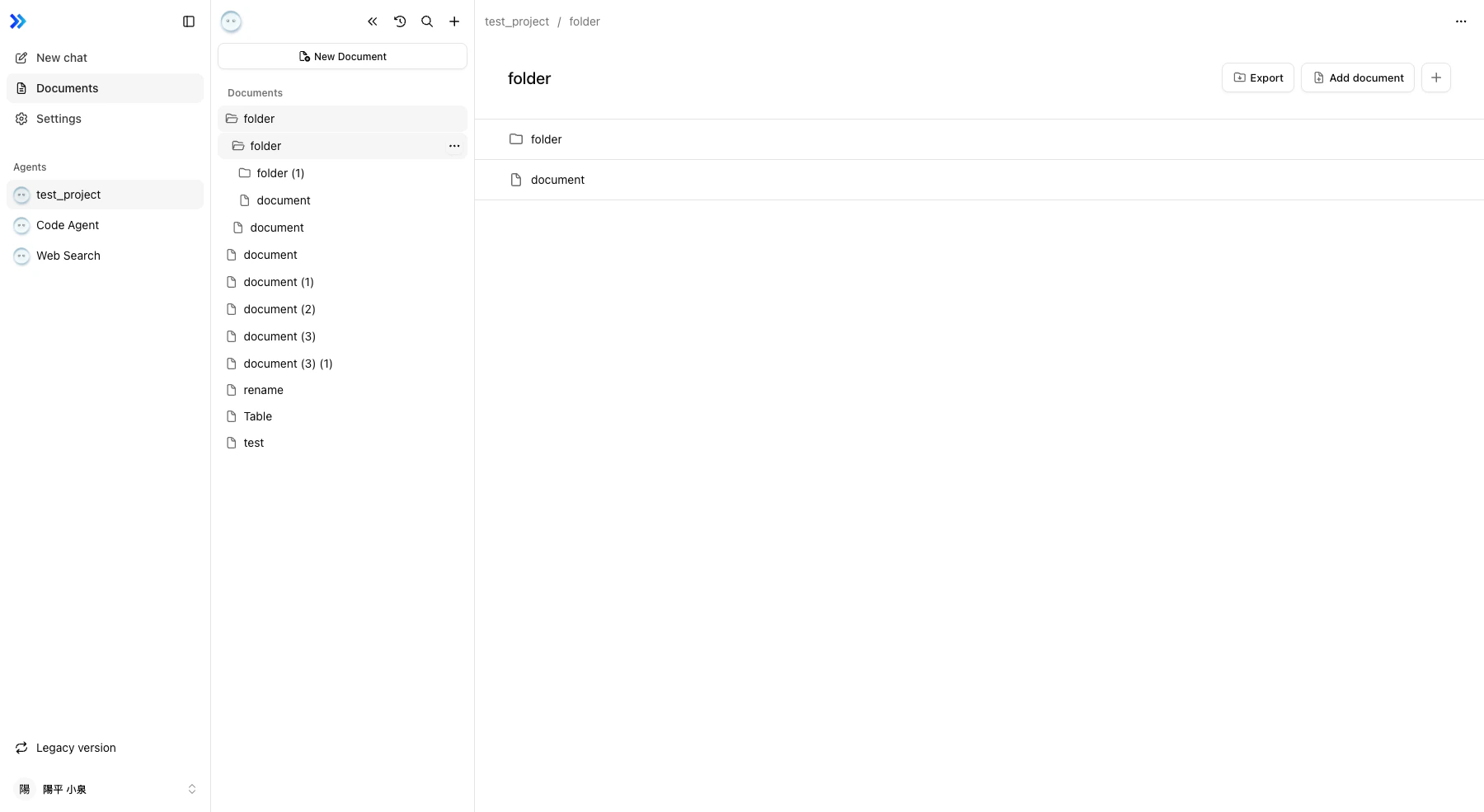
- Click a folder in the tree to expand or collapse it.
- Click a document to open it in the editor.
- Use the breadcrumb trail at the top of the content area to jump to parent folders.
- The URL updates as you navigate, so you can share links to specific folders or documents.
Creating documents and folders
You can create documents and folders from two places:- File tree toolbar — Click the New Document or New Folder button.
- Folder view header — Click Add document when viewing a folder.
Searching documents
Use the search field at the top of the file tree to find documents by name. Results filter in real-time as you type, highlighting matching nodes in the tree.Drag and drop
Rearrange your document structure by dragging nodes in the file tree:- Drag a document or folder onto another folder to move it.
- Select multiple items (see below) and drag them together for batch moves.
- Drop files from your computer directly into the tree to import them.
Multi-select and batch operations
Hold Shift to select a range of items in the tree. With multiple items selected, you can:- Drag them together to move in bulk.
- Right-click and choose Delete to remove all selected items at once. A confirmation dialog shows the number of items to be deleted; confirm to apply, or cancel to keep the selection.
Related
- Editing Documents — Creating and editing document content
- Import & Export — Importing files into the tree
- Dynamic Documents — AI-generated documents in the tree