

Open any document from the file tree to start editing. The editor supports two editing modes and read-only viewers for imported files.Documentation Index
Fetch the complete documentation index at: https://docs.jitera.ai/llms.txt
Use this file to discover all available pages before exploring further.
Editor view
The default view is a visual rich-text editor with a formatting toolbar.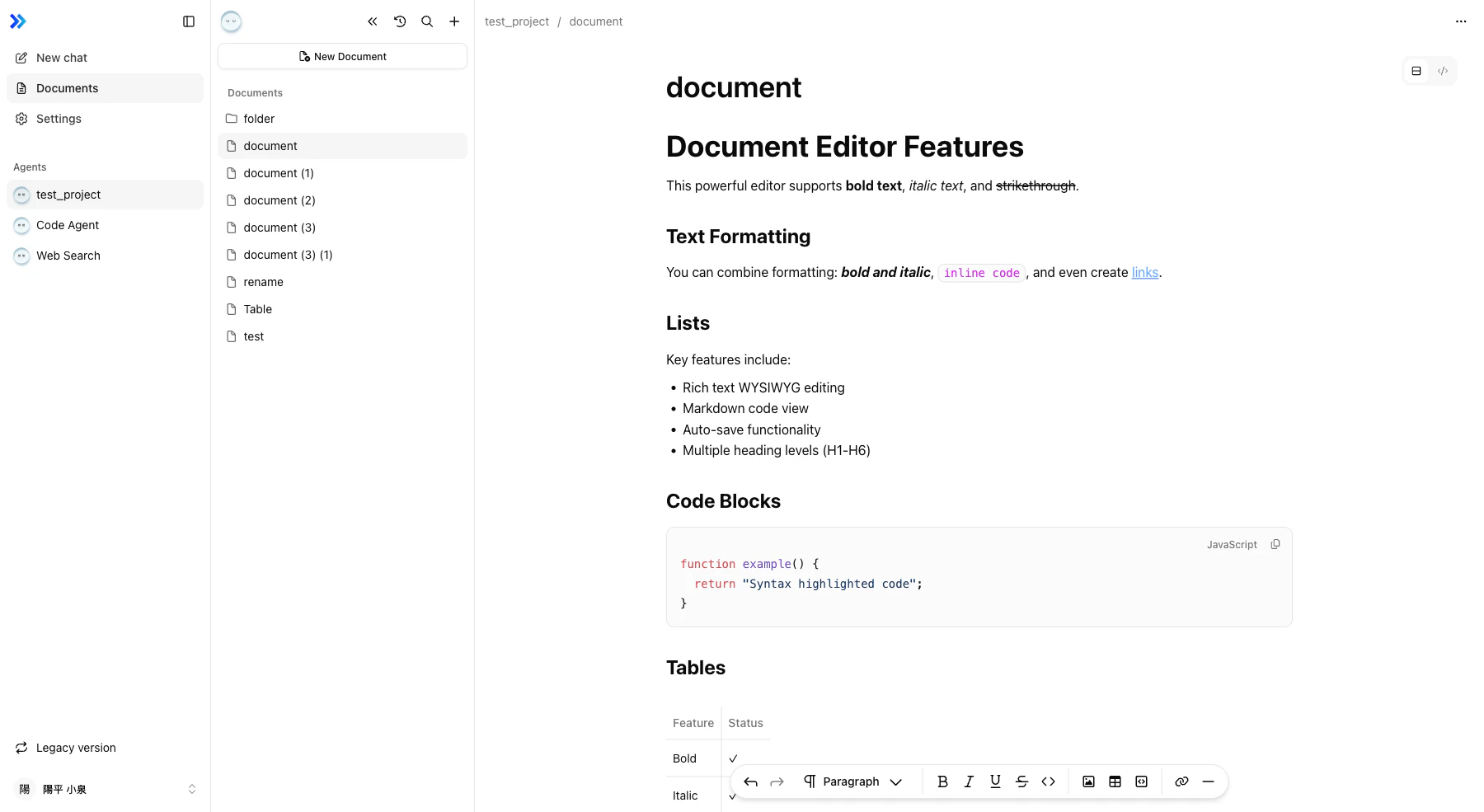
| Tool | Description | Shortcut |
|---|---|---|
| Heading | Heading levels 1–6 | — |
| Bold | Bold text | ⌘+B |
| Italic | Italic text | ⌘+I |
| Underline | Underline text | ⌘+U |
| Strikethrough | Strikethrough text | — |
| Code | Inline code | — |
| Image | Insert or drag-and-drop images | — |
| Table | Insert a table | — |
| Code Block | Insert a fenced code block | — |
| Link | Add a hyperlink | — |
| Separator | Insert a horizontal rule | — |
Code view
Click the Code view tab to switch to raw Markdown editing with line numbers and code folding.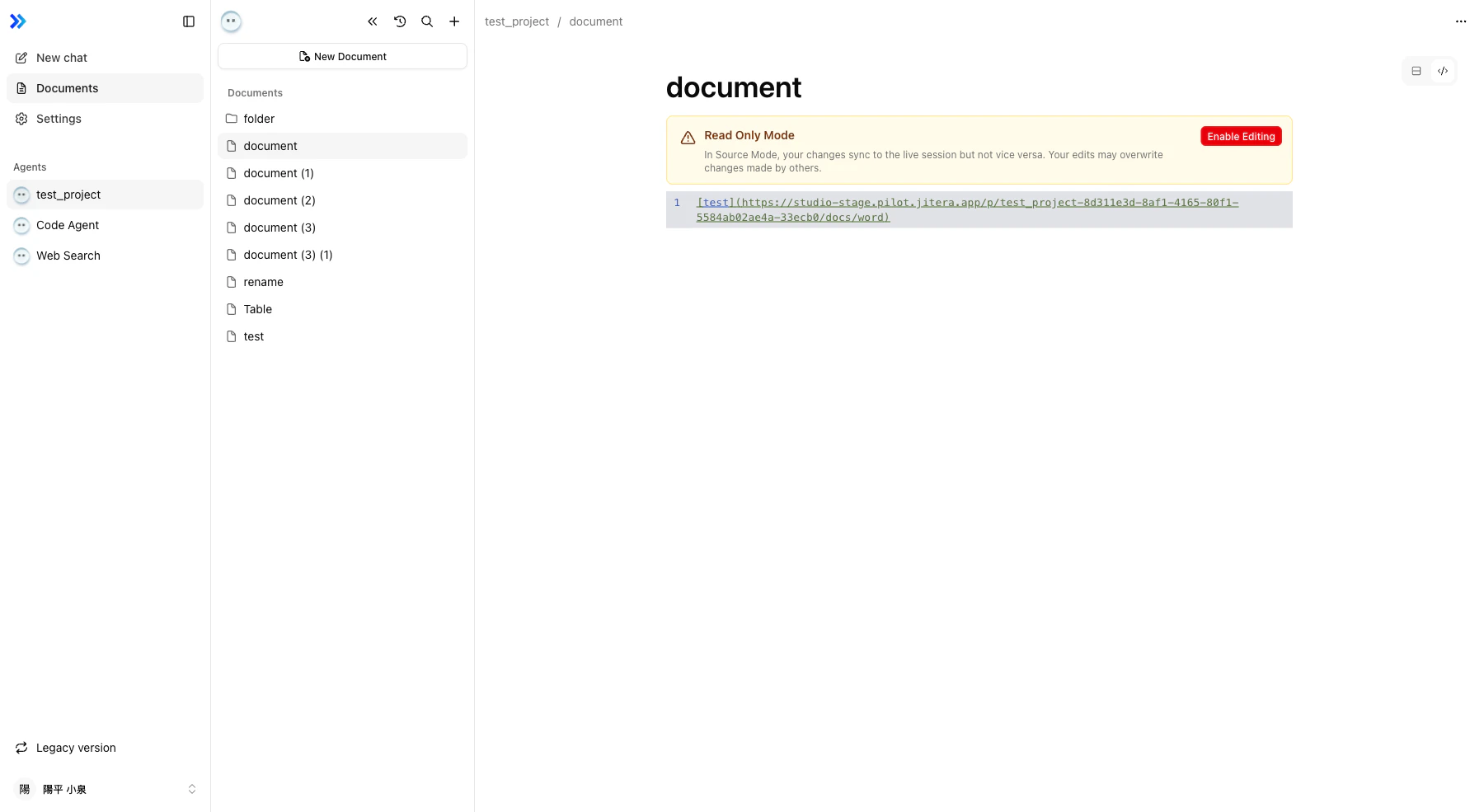
- Edit the Markdown source directly.
- Click the fold arrows (▾) to collapse sections.
- Switch back to Editor view to see the rendered result.
Diff view
Click the Diff tab to see a side-by-side comparison of changes within the current document. For full version history, see Version History.Saving
- Click Save in the top right to save the current document.
- The file tree panel also shows a Save all changes button to save all open drafts at once.
- Unsaved changes are stored locally as drafts, so you won’t lose work if you navigate away.
- To discard a draft, use the context menu on the document in the file tree.
Content length limits
Each document has a per-view character limit. When the limit is reached, further input is blocked and an error message appears in the editor.| View | Limit |
|---|---|
| Editor view | 250,000 characters |
| Code view (raw Markdown) | 500,000 characters |
Viewing PDFs
Imported PDF files open in a read-only page-tab viewer. Each page is displayed as a separate tab that you can scroll through.Viewing spreadsheets
Imported Excel files (.xlsx, .xls) open in a read-only viewer with tabs for each sheet in the workbook.
Inserting images
Drag and drop an image file into the editor, or click the Image button in the toolbar. Images are uploaded and hosted automatically.Collaborative editing
Collaborative Editing is not available to all users. Contact your Jitera representative to learn about access.
- Auto-save replaces the manual Save button. Changes are synced automatically as you type.
- The system creates automatic snapshots that appear in Version History:
- Every 10 minutes during active editing
- 1 minute after the last user leaves the document
- If your connection is temporarily lost, a banner appears at the top of the editor. Changes made offline are synced when the connection is restored.
Related
- Browsing & Organizing — Navigating the document tree
- Version History — Comparing document versions