

Dynamic Documents are AI-generated from your connected code repositories. Once a repository is synced, Jitera can generate two types of content: code module documentation and a database schema viewer.Documentation Index
Fetch the complete documentation index at: https://docs.jitera.ai/llms.txt
Use this file to discover all available pages before exploring further.
Accessing Dynamic Documents
- Click Documents in the left sidebar.
- Open the Dynamic documents folder in the file tree.
- You will see one entry per connected repository, plus a Database entry.
Code module documentation
Generates AI-written documentation from your codebase, organized into folders that reflect your code structure (e.g.modules/, rules/, top-level overviews).
How to generate
- Click your repository name under Dynamic documents (e.g.,
my-backend). - Click Generate dynamic documents.
- In the dialog, confirm the monthly limit and select a model if needed.
- Click Generate. Generation runs in the background.
What gets generated
Each module document typically contains:| Section | Description |
|---|---|
| Summary | AI-written overview of what the module does |
| Architecture diagram | Visual diagram rendered from the code structure |
| Files | File references with GitHub links and line anchors |
| Development notes | Additional context from the AI analysis |
Exporting generated documents
After generation, an Export button appears in the folder header. Click it to download all generated documents as a ZIP file.Database schema
Analyzes your connected backend repository and extracts the database schema — table names, column names, and data types.How to generate
- Click Database under Dynamic documents.
- Click Generate database.
- The schema viewer loads automatically after generation.
Using the schema viewer
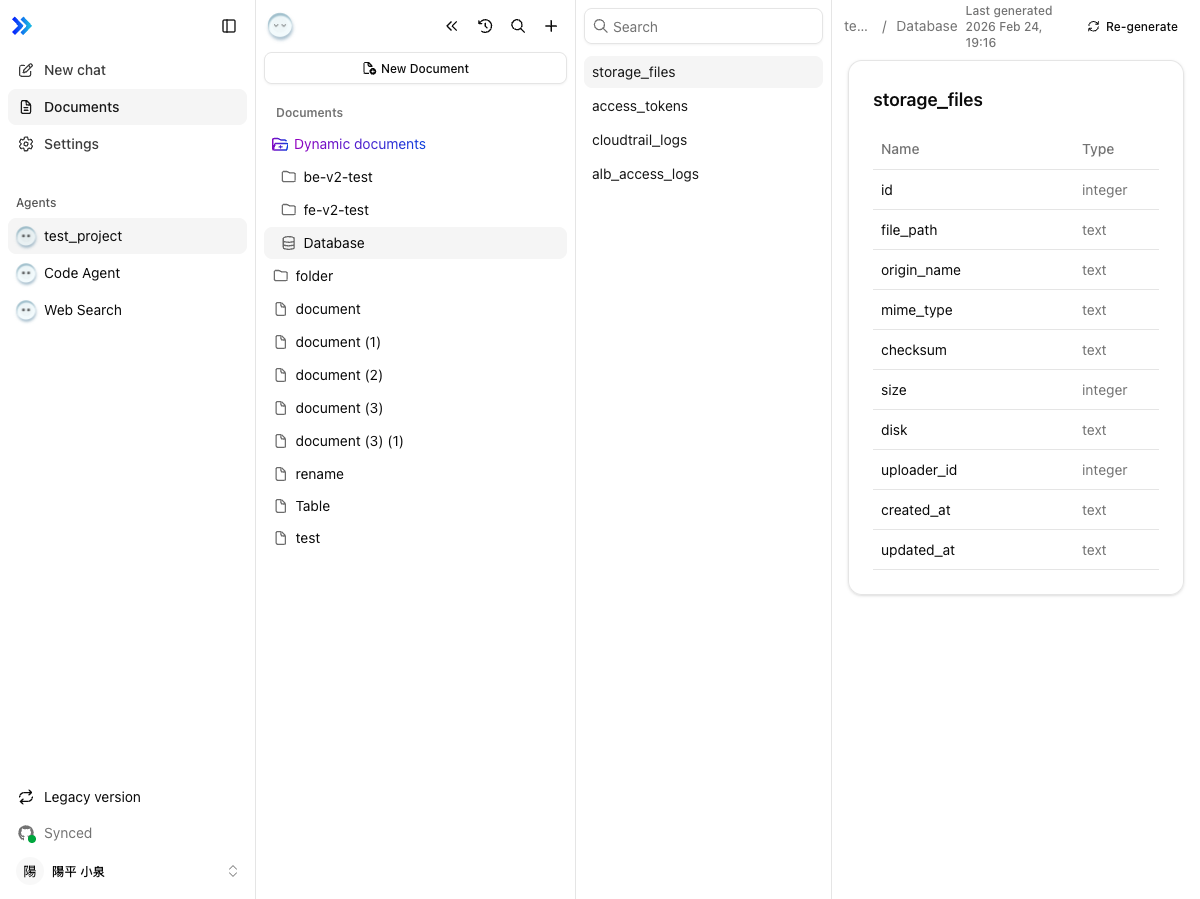
- Table list (left panel) — Searchable list of all database tables. Click a table to view its columns.
- Column details (main area) — Column names and data types for the selected table.
- Last generated — Timestamp shown in the top right.
- Re-generate — Click to refresh the schema with the latest database state.
Limitations
| Limitation | Details |
|---|---|
| Generation limit | 5 per month (shared across code and database) |
| Content editing | Generated documents are read-only |
| Scheduling | Automatic regeneration is not supported |
Related
- Code Sources — Connecting repositories
- Browsing & Organizing — Navigating generated documents in the tree
- Import & Export — Exporting documentation