

Invite external guests to access a specific project through email-based invitation. Project Invitations enables batch guest invitations with automatic validation and resend and cancellation functionality for managing pending invitations.Documentation Index
Fetch the complete documentation index at: https://docs.jitera.ai/llms.txt
Use this file to discover all available pages before exploring further.
Capabilities
- Invite multiple guests simultaneously via email addresses
- Send batch invitations with single submission
- Validate email addresses before sending invitations
- View invitation status (pending, accepted) for each guest
- Resend invitations to guests who haven’t accepted
- Cancel pending invitations before acceptance
How to Use
- Navigate to project Settings.
-
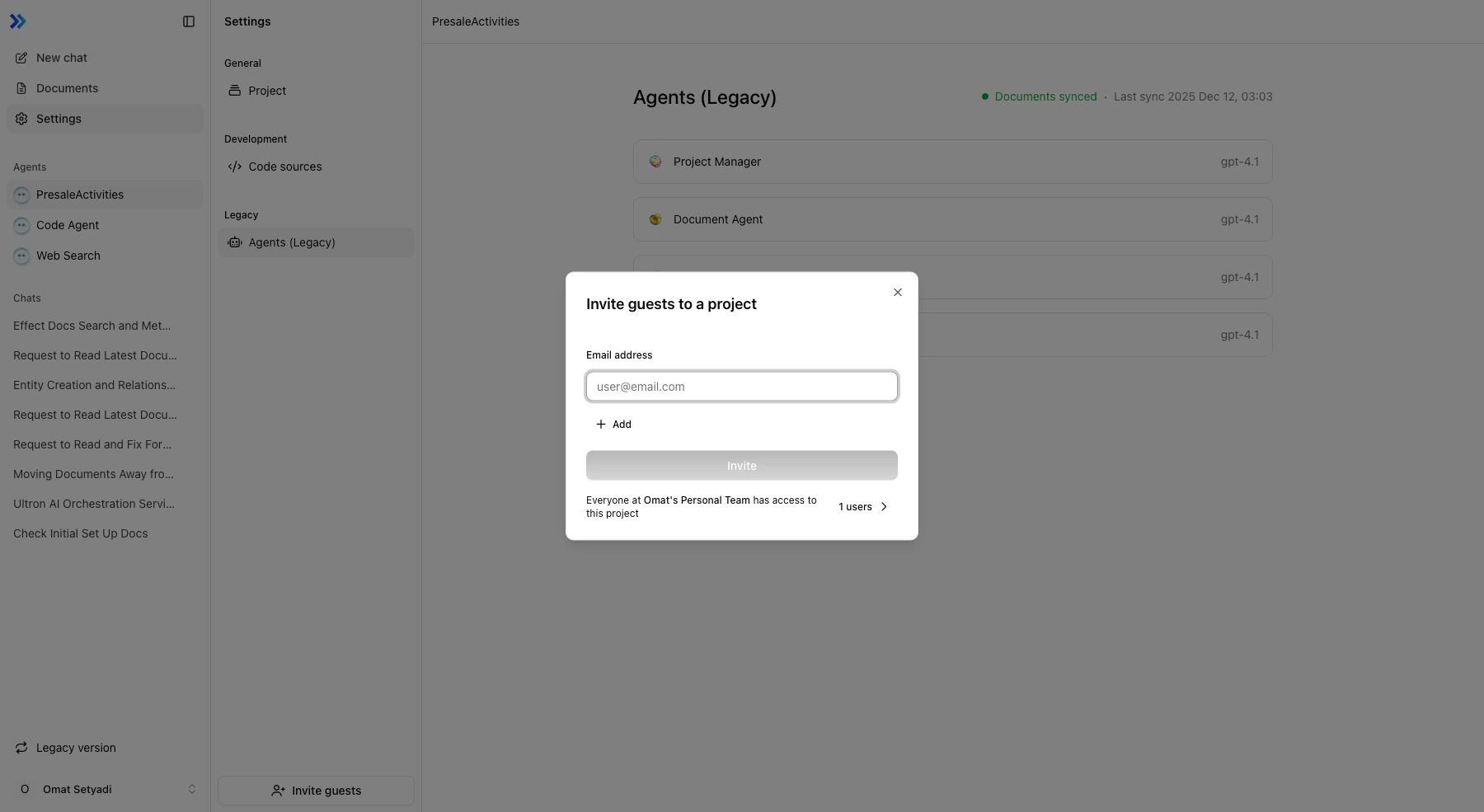
Click Invite guests button at the bottom of the settings sidebar.
-
Add guest email addresses:
- Enter email address in the “Email address” field
- Click Add to add email to the invitation list
- Repeat to add multiple email addresses (batch invitation)
- Remove an email by clicking the remove icon (×) next to the address
-
Submit invitations:
- Review the list of email addresses to invite
- Click Invite to send all invitations
- System validates email format for each address
- Valid invitations send immediately
-
Handle invitation errors:
- Invalid email format: Email address fails validation
- Already company member: User is already a member of the organization
- Already invited to company: Pending invitation exists at company level
- Already team guest: User already has team access
- Already invited to team: Pending team invitation exists
- Error messages display per email address with the specific reason
-
Manage pending invitations:
- View invitation list with status indicators
- Resend invitation: Click resend icon next to a pending invitation
- Cancel invitation: Click cancel icon to remove a pending invitation
- Confirmation required before cancellation
-
Monitor invitation acceptance:
- Pending invitations show “Pending” status
- Accepted invitations show “Accepted” status
Requirements
| Requirement | Details |
|---|---|
| Permission | Project Owner or Admin |
Limitations
| Limitation | Details |
|---|---|
| Invitation method | Email-based only |
| Role assignment | Viewer role only (no role selection) |
| Invitation expiry | No expiration (remains pending indefinitely) |
Related
- Project Configuration - Project settings overview
- Team Members - Team-level user management
- Project List - Viewing projects with guest access