

Navigate between teams, projects, chats, and settings using collapsible sidebar menu. Sidebar Navigation displays context-aware navigation options that adapt based on current location (home, team, or project), with toggle and keyboard shortcut support for workspace customization.Documentation Index
Fetch the complete documentation index at: https://docs.jitera.ai/llms.txt
Use this file to discover all available pages before exploring further.
Capabilities
- Toggle sidebar visibility with button or keyboard shortcut (Cmd/Ctrl + B)
- Search teams using the ⌘K shortcut (Cmd/Ctrl + K) from the home or team-level sidebar
- Navigate between Home, teams, and projects from team-level sidebar
- Access project features (New chat, Documents, Settings) from project-level sidebar
- View and switch between agents in project sidebar
- Browse chat history with clickable chat titles
- Expand and collapse team sections (Teams, External teams)
- Persist sidebar state across sessions with cookie storage
- Automatically adjust sidebar width for mobile and desktop views
How to Use
-
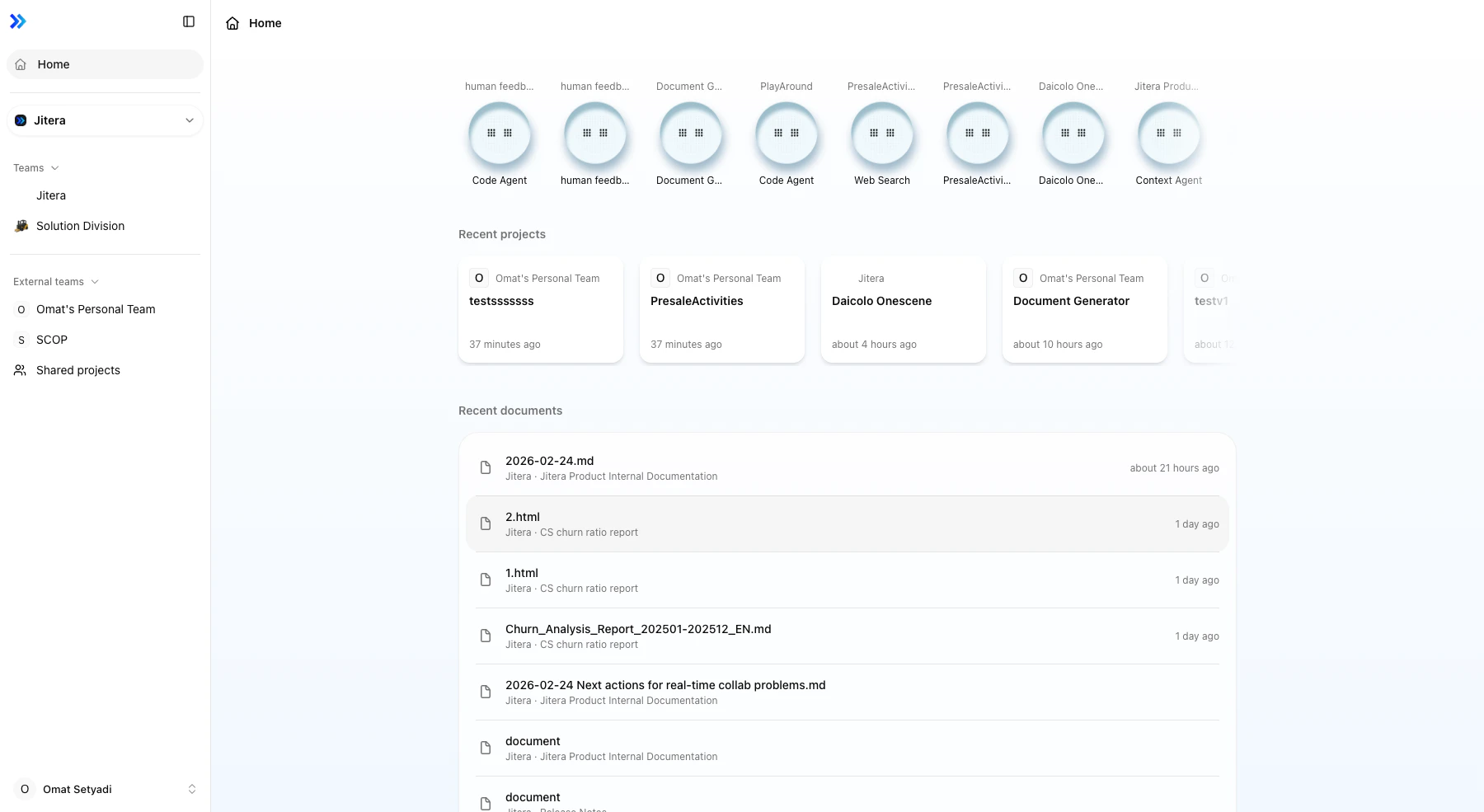
At Home or Team level, sidebar displays team and project navigation:
-
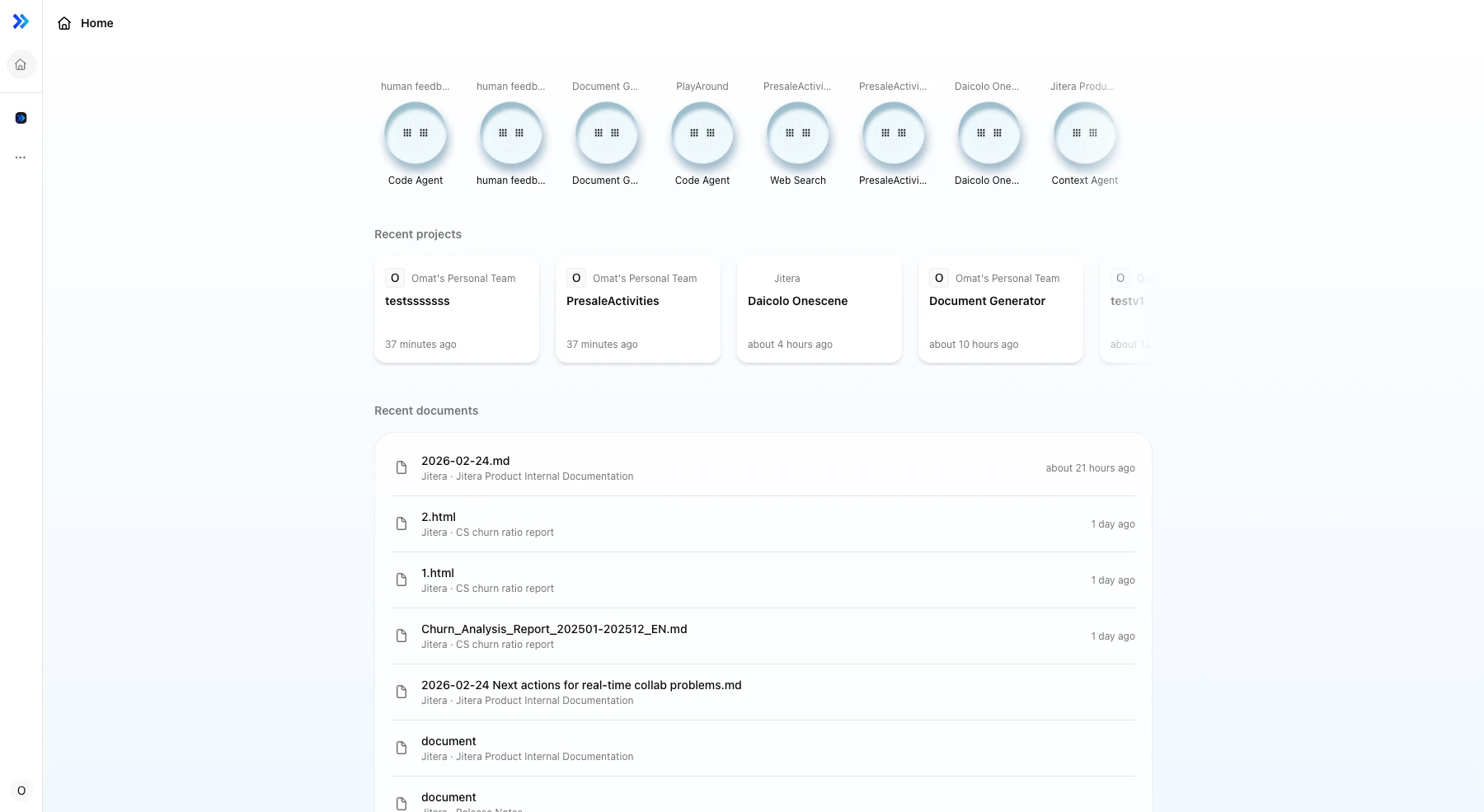
Toggle sidebar visibility:
- Click “Toggle Sidebar” button (≡ icon) in top-left corner
- Or press Cmd + B (Mac) or Ctrl + B (Windows/Linux)
- Sidebar collapses to icon-only view showing minimal icons
- Sidebar state saves automatically and persists across sessions
-
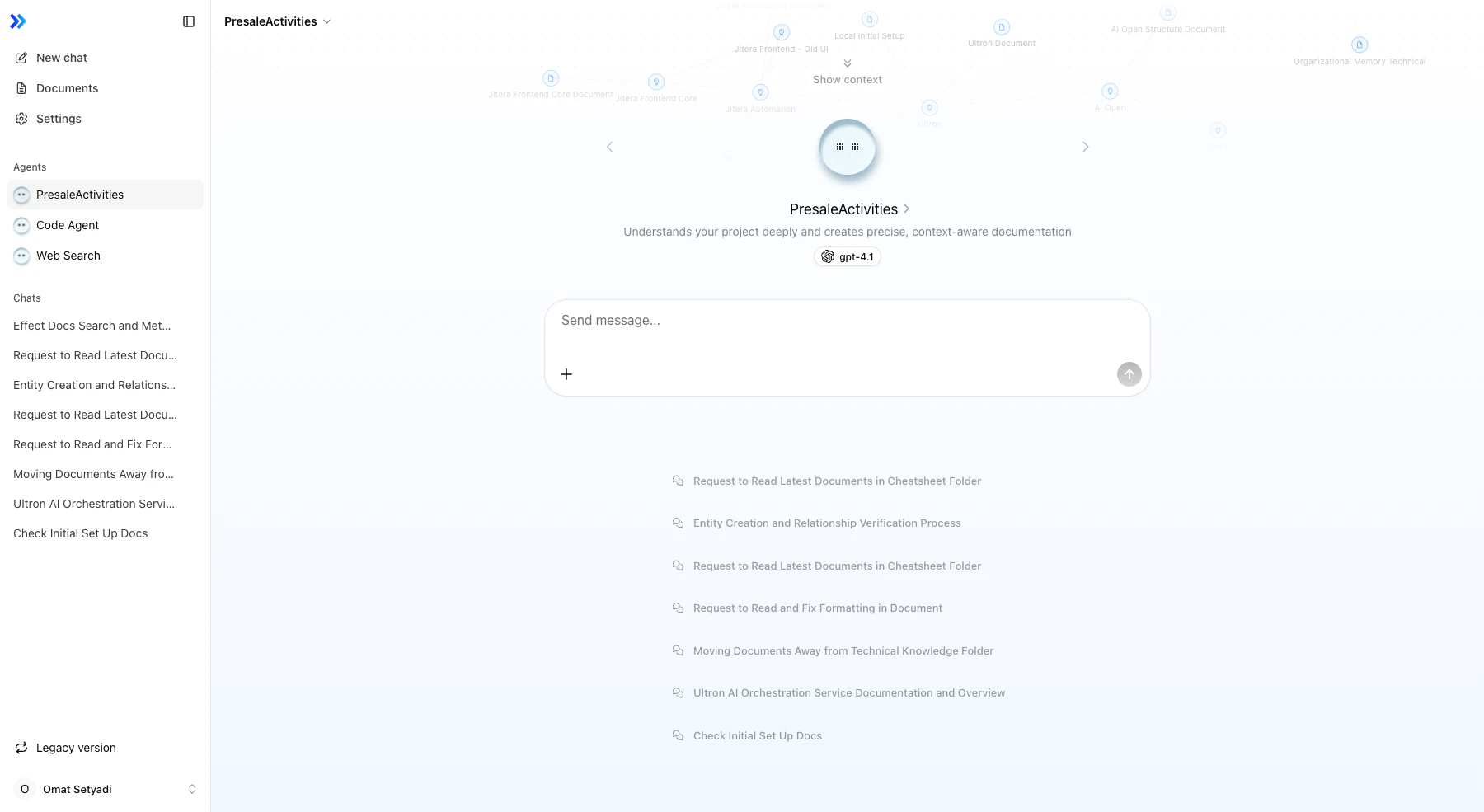
Inside a project, sidebar changes to show project-specific navigation:
- Top navigation: New chat, Documents, Settings links
- Agents section: Lists available project agents (project agent, Code Agent, Web Search)
- Threads section: Displays chat history with clickable titles
- Bottom section: Legacy version link and user profile button
-
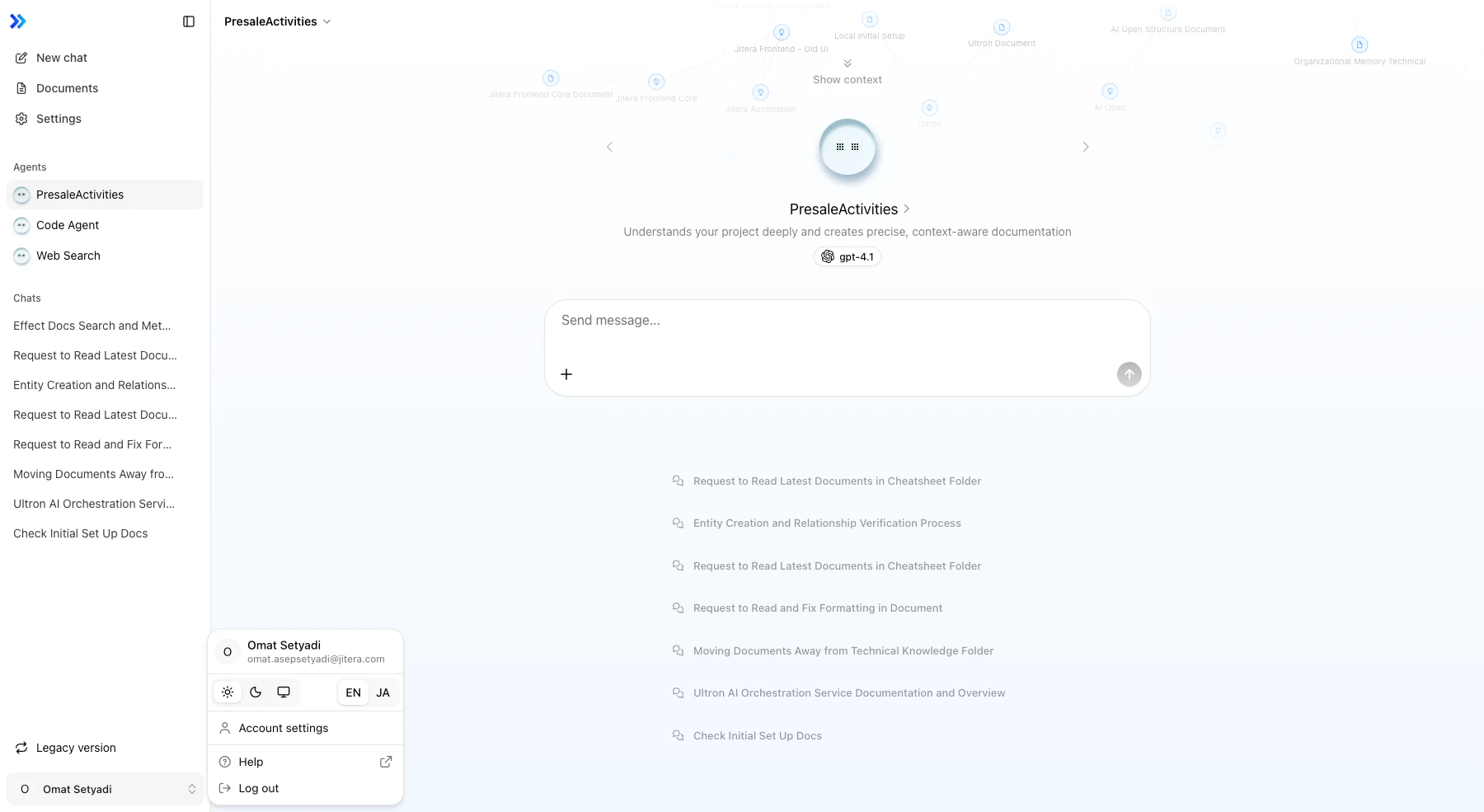
Access user profile menu:
- Click user profile button at bottom of sidebar (shows avatar and name)
- Profile menu displays:
- User information (name and email)
- Theme switcher (Light, Dark, System icons)
- Language switcher (EN/JA tabs)
- Account settings link
- Help link
- Log out button
-
Navigate between teams:
- At team level, click team name links under “Teams” or “External teams”
- Browser navigates to selected team’s project list
- Sidebar updates to show selected team context
-
Navigate to projects:
- From team page, click project name in main content area
- Sidebar switches to project-specific navigation mode
- Project name appears in header as breadcrumb
Requirements
| Requirement | Details |
|---|---|
| Permission | Any authenticated user |
Limitations
| Limitation | Value |
|---|---|
| Keyboard shortcut | Single shortcut only (Cmd/Ctrl + B, not customizable) |
| Collapse modes | 3 modes (expanded, collapsed, offcanvas) |
| Desktop width | 16rem (256px) when expanded |
| Mobile width | 18rem (288px) when expanded |
| Icon width | 3.25rem (52px) when collapsed |
| Cookie duration | 7 days for sidebar state persistence |
| Language options | 2 languages (English, Japanese) |
| Theme options | 3 themes (Light, Dark, System) |
Related
- Theme Switcher - Changing application theme from profile menu
- Language Switcher - Switching interface language
- User Profile Menu - Accessing account settings and preferences
- Project List - Viewing and accessing projects